
On this page
- What is data recovery?
- What happens when you delete a file
- On NTFS
- On FAT32 and exFAT
- Recycle Bin vs permanent delete
- Quick format vs full format
- Quick scan vs deep scan: how deleted data is recovered
- Quick scan: reading the file table
- Deep scan: reading every sector
- Fragmentation: why some recovered files are damaged
- Why verification matters
- SSDs, TRIM and physical damage
- SSDs and TRIM
- Physical damage: why imaging comes first
- The golden rules of data recovery
- What to do next
How does data recovery work? When you delete a file, Windows usually does not erase its contents. It only marks the space as free in the drive's file table. Until new data is written there, recovery software can read it back, through the file table (quick scan) or by recognizing files directly in the raw data (deep scan).
That is the whole idea in one sentence. The rest of this guide explains what really happens on the drive, why some files come back perfect and others broken, and the few rules that protect your chances.
If you have just lost files: stop using that drive now. Do not save, download or install anything to it, and do not format it, initialize it or run chkdsk. Every write can overwrite the files you want back.
What is data recovery?
Data recovery is the process of getting back files that are no longer reachable the normal way. They may have been deleted, the drive may have been formatted, the file system may be damaged so Windows shows the drive as RAW, or the drive itself may be failing.
In most of these cases the data is still physically on the drive. What is lost is the map that tells Windows where each file lives. Recovery software either repairs its view of that map or works without it.
What happens when you delete a file
Windows drives use a file system to keep track of files. On most internal drives that is NTFS. USB flash drives and memory cards usually use exFAT or FAT32. Each file system has a table that records every file's name, folder, size, dates and the location of its data on the disk.
On NTFS
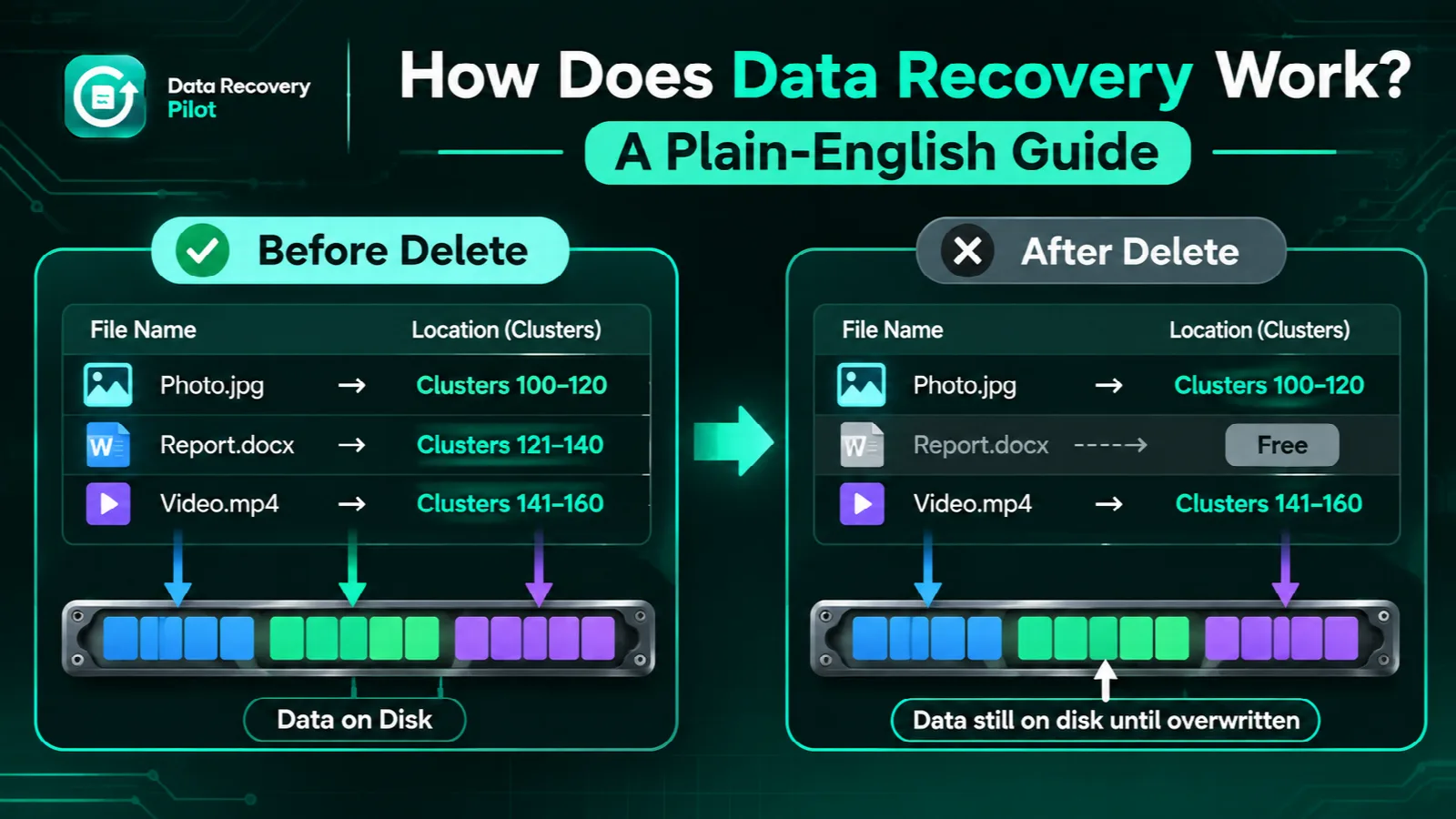
NTFS keeps a record for every file in the Master File Table (MFT). When you permanently delete a file, NTFS marks that record as no longer in use and marks the file's clusters (blocks of storage) as free. The record and the data usually stay where they were. They are simply allowed to be reused.
On FAT32 and exFAT
FAT file systems work in a similar way. The file's directory entry is marked as deleted and its clusters are released. On FAT32, the chain that links a file's clusters together is also cleared. That is why a file stored in one continuous piece is usually easy to recover from a FAT32 card, while a file stored in scattered pieces is harder.
In both cases the actual content stays on the disk until Windows needs that space for something new. That is why time and activity matter so much. The more you use the drive after a deletion, the more likely the space gets reused.
Recycle Bin vs permanent delete
When you press Delete on a file on an internal drive, Windows normally moves it to the Recycle Bin. Nothing is freed yet. You can open the Recycle Bin from the desktop, right-click the file and choose Restore. Always check there first.
A file is deleted permanently, skipping the Recycle Bin, when:
- you press Shift+Delete;
- you empty the Recycle Bin;
- you delete from most USB flash drives and memory cards, which usually do not have a Recycle Bin, so Windows asks if you want to permanently delete the file;
- the file is too large for the Recycle Bin, or a program deletes it directly.
Permanently deleted files are the classic case for recovery software. Our guide to recovering deleted files walks through the options, free ones first.
Quick format vs full format
Formatting creates a new, empty file system on a drive. How much old data survives depends on the type of format.
- Quick format writes fresh, empty file system structures and does not touch most of the disk. On a hard drive, USB stick or memory card, the old file content usually stays in place and a deep scan can find it.
- Full format on Windows Vista and later, including Windows 10 and 11, writes zeros to the whole volume. Microsoft documents this change in Change in the behavior of the format command in Windows Vista and later versions. After a full format, the old data is gone.
In File Explorer's Format dialog, the Quick Format box is checked by default. In Disk Management the option is called Perform a quick format. If that box was checked when the drive was formatted, recovery is often possible. If it was unchecked and the format finished, it is not. SSDs are a special case because of TRIM, covered below. For more detail, see formatted drive recovery.
Quick scan vs deep scan: how deleted data is recovered
Recovery software usually offers two kinds of scan. They answer the same question in very different ways.
Quick scan: reading the file table
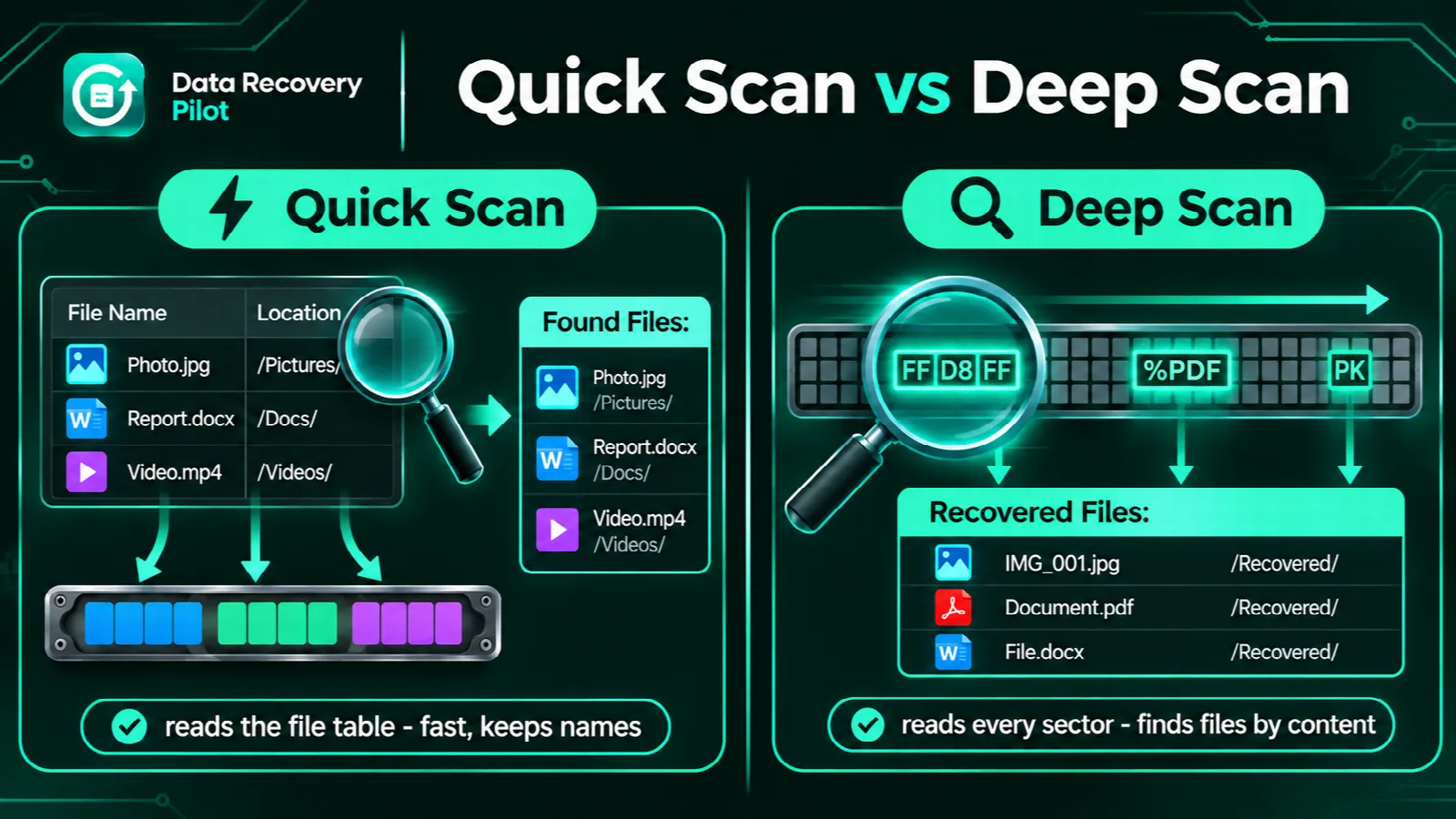
A quick scan reads the file system's table and looks for entries that are marked deleted but still describe a file. Because the entry is still there, the scan gets the original file name, folder, size and dates, and knows exactly where the data was. This is fast, often taking seconds to minutes, and gives the best results for recently deleted files and emptied Recycle Bin items.
Deep scan: reading every sector
After a format, or when the file system is damaged and the drive shows as RAW, the table is missing or unreliable. A deep scan then reads the whole drive, sector by sector. It looks for leftover file table records, and it also recognizes files by their content. Most file types begin with a known pattern of bytes called a file signature. JPEG photos start with the bytes FF D8 FF, PDF files start with %PDF, and Word, Excel and PowerPoint files (.docx, .xlsx, .pptx) are ZIP packages that start with PK.
Finding files by their signature and working out where each one ends is called file carving. It can rescue files from drives with no usable file table, but carving alone does not know the original file name or folder. When a deep scan also finds old file table records, it can often restore names and folders too.
Fragmentation: why some recovered files are damaged
Files are not always stored in one continuous block. When a drive is busy or nearly full, a file may be split into several pieces in different places. This is called fragmentation.
If the file table entry survives, the scan knows where every piece is. If it does not, a carving scan has to guess. It usually assumes the file continues straight on from where it starts. When the second piece is actually somewhere else, the result is a file that opens halfway and then breaks: a photo with a grey or scrambled lower half, or a video that stops playing at a certain point.
The other common cause of damage is partial overwriting. A new file may have reused some, but not all, of the old file's clusters. The beginning of the old file may be intact while the middle is replaced with unrelated data.
Why verification matters
A scan can list thousands of files. The real question is which of them will open. Without verification, you only find out after recovering and trying each file, which takes time and can be very disappointing.
Data Recovery Pilot checks each deleted file from start to end and labels it Recoverable, Damaged (at a given point) or Overwritten. You can preview photos, video, PDF and Office files before recovering anything. For fragmented files, its Repair feature looks for the missing piece and rebuilds the file, grading the result Exact, Structural or Weak. The app opens the drive read-only and blocks recovery to the same drive.
SSDs, TRIM and physical damage
SSDs and TRIM
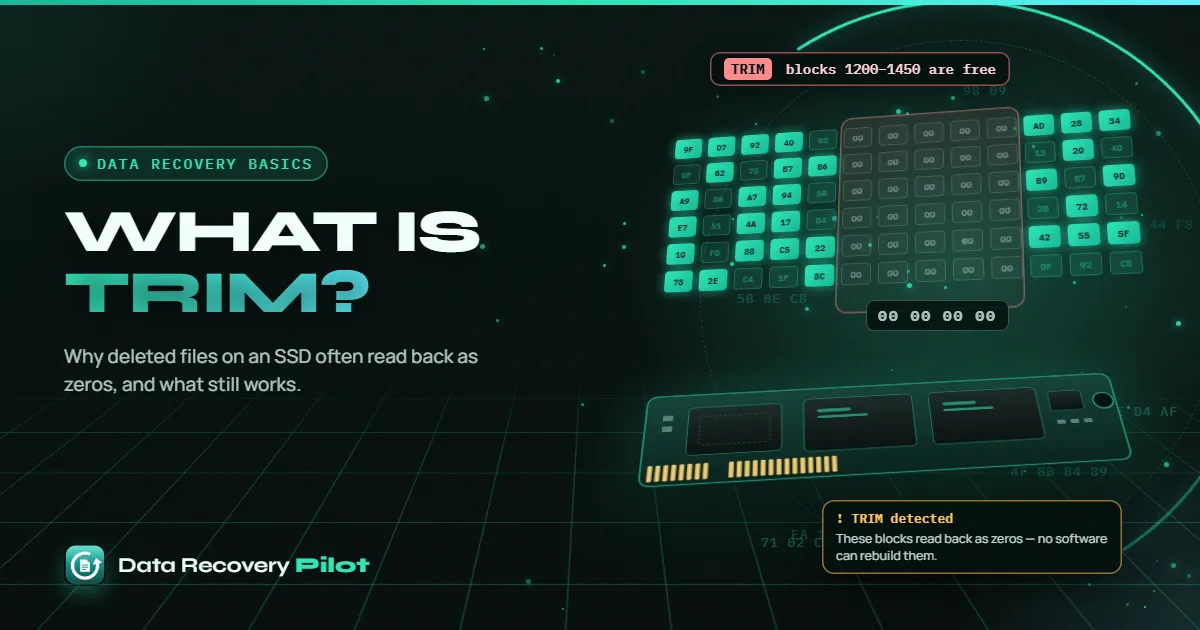
SSDs behave differently from hard drives. When you delete a file on an internal SSD, Windows normally sends a TRIM command telling the SSD which blocks are no longer in use. The SSD can then clear those blocks, and it typically reads them back as zeros, often very soon after the deletion. Once that has happened, no software can get the old data back. Microsoft's fsutil behavior reference describes this "delete notification" feature. Data Recovery Pilot detects TRIM and tells you honestly when files are gone. See SSD data recovery for what is still possible.
Physical damage: why imaging comes first
If a drive clicks, grinds, smells burnt, or has been dropped, wet or in a fire, turn it off. Do not keep trying to read it, and do not open it. Every attempt can cause further damage. A professional data recovery lab is the right choice for physical damage.
Drives that are slow, freeze or keep disconnecting are different. They may still be readable, but each read stresses them. The safe approach is to make a disk image first: copy the readable areas to a file on a healthy drive, then scan the image instead of the drive. Data Recovery Pilot can image a failing drive, reading healthy areas first and weak areas last, and resume after a disconnect. Our guide to failing hard drive recovery covers this.
The golden rules of data recovery
- Stop using the drive. Every new file, update or download can overwrite deleted data. If the lost files were on your system drive (C:), shut down or keep activity to a minimum.
- Check the easy places first. Look in the Recycle Bin, your OneDrive recycle bin if you use OneDrive, and File History or Previous Versions if they were turned on.
- Never recover to the same drive. Save recovered files to a different drive. Writing them back to the source can overwrite other files you still need.
- Do not format, initialize or run chkdsk first. If Windows says the drive needs to be formatted, click Cancel. Initializing a disk in Disk Management writes a new partition table. Chkdsk changes the file system to fix errors and can remove the very entries a quick scan needs.
- Image failing drives before scanning. If the drive is slow or disconnects, image it first and work from the image.
- Power off physically damaged drives. Clicking, grinding or water damage means a lab, not software.
What to do next
Start with the free checks: the Recycle Bin, OneDrive and any backups. If the files are not there and the drive is working normally, install recovery software on a different drive and run a quick scan, then a deep scan if needed. Preview the results, and recover only to another drive. If the drive is making unusual noises, power it off and contact a lab.
Questions people ask
Are deleted files really gone forever?
Usually not straight away. On hard drives, USB sticks and memory cards, deleting a file only marks its space as free, so the content stays until new data overwrites it. On SSDs, TRIM normally clears deleted data soon after deletion, and after a full format on Windows 10 or 11 the data has been overwritten with zeros.
How long do deleted files stay on a hard drive?
There is no fixed time. A deleted file stays until Windows reuses its space for new data. On a busy system drive that can happen within minutes; on an external drive you rarely use, it can take months. The less you use the drive after the deletion, the better your chances of getting the file back.
Why do recovered files sometimes not open?
The most common reasons are fragmentation and partial overwriting. If a file was stored in several pieces and the file table entry is lost, a scan may join the wrong data to the start of the file. If new files reused part of the old file's space, that part is gone. Verification shows this before you recover.
Can I recover files after reinstalling Windows?
Sometimes, but chances are lower. Reinstalling Windows writes many gigabytes of new files to the system drive, which overwrites a lot of deleted data. If your files were on another partition or drive that was not formatted, they are usually still there. Do not use the PC more than necessary, and scan as soon as you can.
 Data Recovery Basics What is TRIM? SSD TRIM and Deleted Files Explained
 Data Recovery Basics What is Data Recovery Pilot? An Honest Introduction